Installing R and RStudio is the first practical step toward learning R programming. R can be downloaded from the CRAN website.
After installing R, the next step is to install RStudio, an integrated development environment that simplifies coding and analysis.
Step 1: Install R (The Core Language)
You must install the R programming language before installing RStudio.
- Go to the CRAN website: Open your web browser and navigate to the official Comprehensive R Archive Network (CRAN) website.
- Select your OS: Click the link corresponding to your operating system (Windows, macOS, or Linux).
- Download the Base Installer:
- Windows: Click on “base,” then click the link to download the latest R version installer (e.g., “Download R 4.x.x for Windows”).
- macOS: Click the link for the latest
.pkgfile under the “Latest release” section. - Linux (Ubuntu/Debian): The recommended method is usually through the terminal using commands, which you can find detailed instructions for on the CRAN page (often involving adding the CRAN repository and running
sudo apt install r-base).
- Run the Installer:
- Locate the downloaded file and double-click it.
- Follow the installation wizard prompts, accepting the defaults is generally fine for most users. Click Next until the installation is complete.
Step 2: Install RStudio (The IDE)
RStudio offers a more user-friendly graphical interface for writing R code compared to the base R installation.
- Go to the RStudio Download Page: Navigate to the official RStudio download page (often provided by Posit, the company that develops RStudio).
- Select RStudio Desktop: Choose the RStudio Desktop version (the free, Open Source Edition is suitable for most users).
- Download the Installer: Click the download link for your operating system (it should auto-detect your OS and provide the correct installer, e.g., a
.exefor Windows or a.dmgfor macOS). - Run the Installer:
- Double-click the downloaded RStudio installer file.
- Follow the installation prompts; again, the default settings are usually best. Click Next until the installation is complete, and then Finish.
Step 3: Verify the Installation
- Launch RStudio: Open RStudio from your Start Menu (Windows) or Applications folder (macOS).
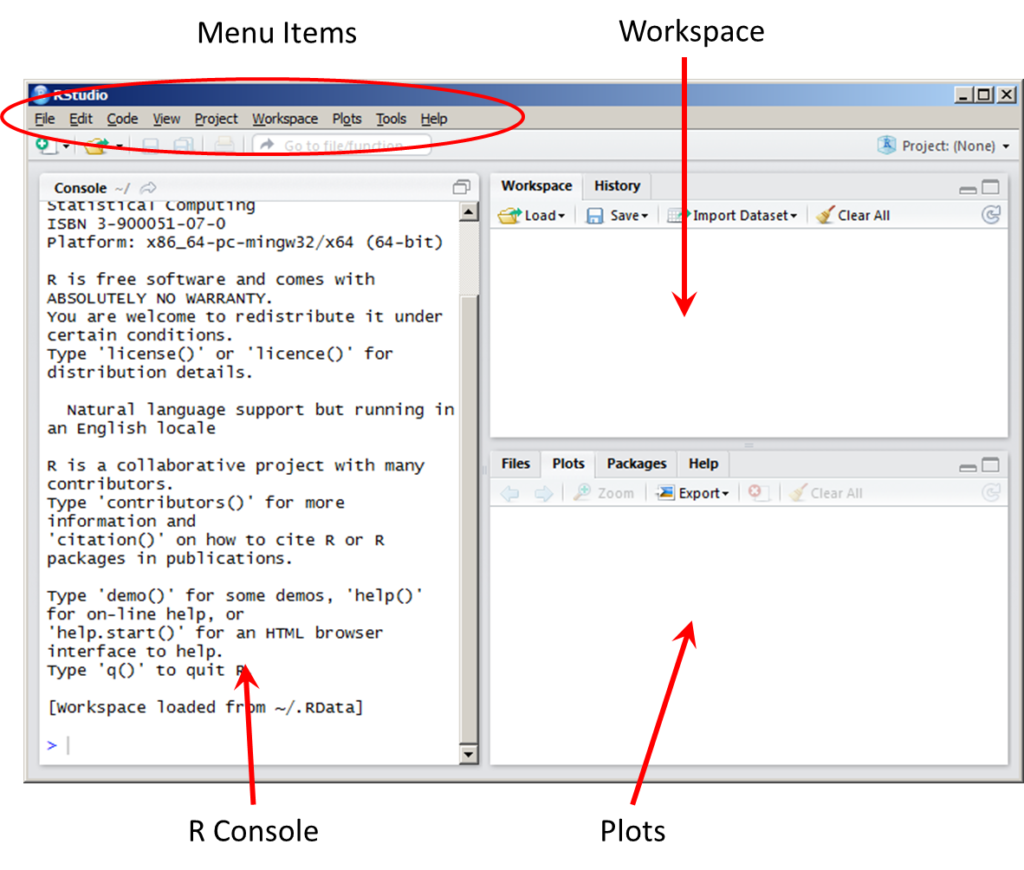
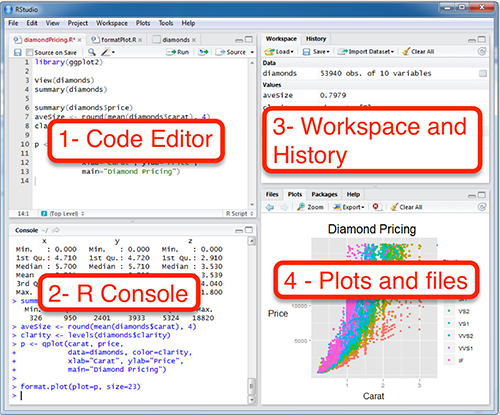
- Check the Console: Once RStudio opens, you should see the Console pane (often in the lower-left). It should display information about the R version that was successfully detected.
- Run a Simple Command: In the Console, type a simple command, such as:R
print("Hello, R!")And press Enter. If the output is[1] "Hello, R!", both R and RStudio are working correctly!